My Vertical Color Picker Online Help
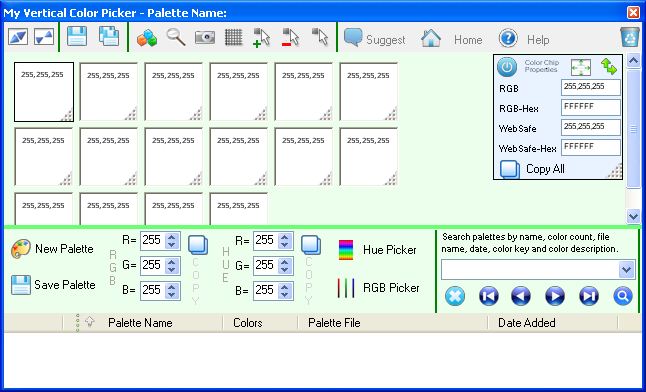
Here is the main application window along with the built-in color pickers (to the right).

What can it do?
 top menu buttons

+  maximizes the application window
+  brings application window to normal size
+  saves the current color chips as a palette. If no palette name is selected yet you will be asked for a name
+  saves the current color chips as a palette for which you need to provide a name
+  arranges all color chips in the initial (default) position
+  show the magnifier window which allows you to grab colors
+  creates an image for the current palette. You can save the image on your hard drive as JPG, PNG, TIFF or BMP. Simply specify the extension as JPG, PNG, TIFF or BMP and the file will be saved under the associated format
+  shows a grid inside the color chips area
+  click this button and then draw a rectangle inside the color chips area to add a new color chip
+  click this button and then draw a rectangle (select a region) inside the color chips area to remove all color chips inside that area
+  click this button and then draw a rectangle (select a region) inside the color chips area. Then a pop-up will appear allowing you to export, edit, move or delete all color chips inside this area
+  removes all color chips currently present inside the color chip panel
grab any color from your screen
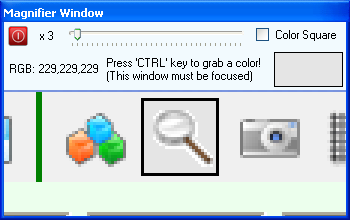
To grab the colors you need to select a color chip first and then start the magnifier window by pressing the button. The magnifier window which shows up is:
use the built-in Hue color picker and RGB color picker to easily select colors
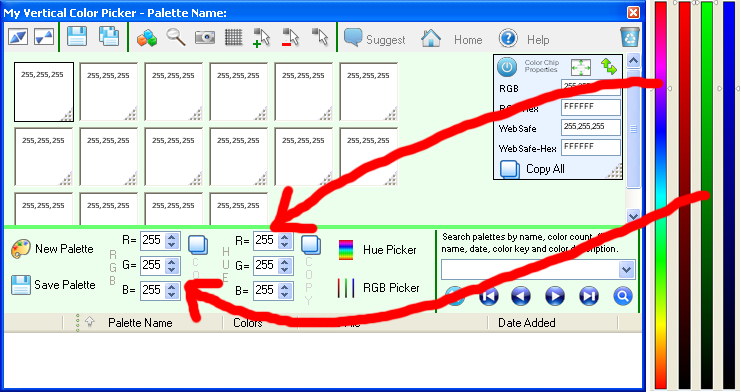
Here are the Hue and RGB built-in color pickers. Modifying the RGB picker color will modify the color in the Hue picker and modifying the color value in the Hue picker will modify the color in the RGB picker.
The colors inside the pickers can be easily modified by dragging the sliders up or down. When the colors in the pickers is modified that color is shown in the main application window in the corresponding text boxes:
edit the color information for a selected color chip using the R,G,B text boxes found in the application
You can change the values inside the text boxes which will also change the color in the selected color chip and in the associated color picker.
access color chip color information at a click of a button
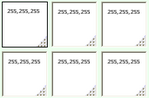
When you click a color chip, that color chip will become the selected color chip. Also, if the color chip properties window is visible then it will be updated with the color information from that color chip.
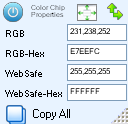
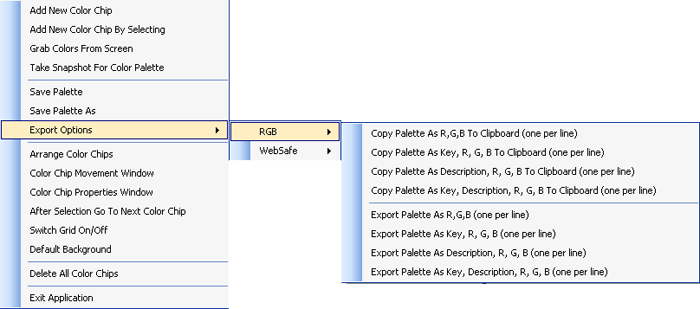
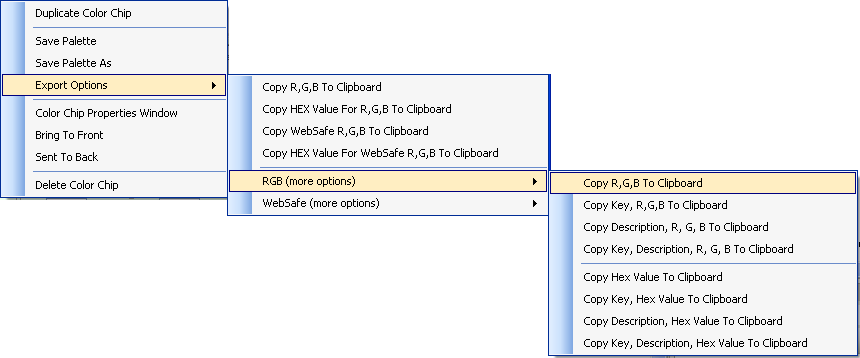
export palette color information and color chip color information to R,G,B, WebSafe, R,G,B-Hex, WebSafe-Hex.
Palette Export - right click inside the color chips panel to show the context menu associated with the palette. Then select the 'Export Options' menu option.
Color Chip Export - right click inside a color chip to show the context menu associated with that color chip. Then select the 'Export Options' menu option.
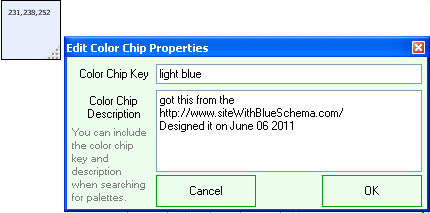
build color palettes with unlimited color chips which can store color, a key and a description which you can use when searching for palettes inside the application
You can double click any color chip to show a pop-up window which allows adding a key (as text) and a description to the color chip. Then when you search for color palettes the search also takes place by the key and the description of every color chip contained in that palette.
resize and move the color chips freely inside the application's color chip panel
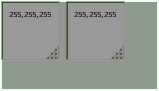
To move a color chip simply drag it inside the color chip area. To resize a color chip click on the bottom left corner and then drag your mouse around until you obtain the size you desire.
 - to -

create snapshots based on the current color chip position
Please see the examples section below showing a few snapshots created within the application based on color palettes.
easily add new color chips by selecting the exact region inside the color panel
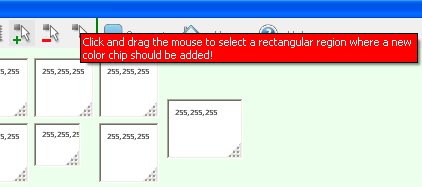
After you click the  button a red message will appear (please see below) which says "Click and drag the mouse to select a rectangular region where a new color chip will be added!". At this moment you need to click and draw a rectangle where the new color chip will be added.
search inside color palettes by palette name, color count, palette file name, color chip key and color chip description
To start the search enter something in the search text box (it's actually a combo box) and then click the  button
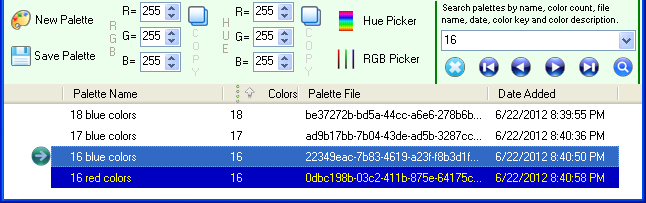
Under the search text box there are next  , previous
  , first
  and last
  buttons which can be used to go back and forth through the search results of color palettes.
The
buttons which can be used to go back and forth through the search results of color palettes.
The  button clears all the search marks from the last search.
go to Tray functionality
You can use the free version of the My Vertical Color Picker application for as long as you want.
Simply download it and install it.
My Vertical Color Picker runs on Windows XP, Vista, 7, 8/8.1, 10 and 11 - both 32 and 64 bits
 Put Images On A Path
 Draw Text On A Path
 Image Vignettes
 Image Warper, Bring Images To Life
 Animated Lake Effect
 Draw A Card From The Deck
 Math Expression Generator
 Sound of the Letters and Numbers in English
 Image Zoom, Pan, Fade In And Out
 Animated Water Effect
 Text File Search And Word Generation
 Scratchpad For Images
 xyPoint System
 Roll the Dice
 Flip The Coins
 Overlaying Shaped And Clickthrough Windows