 Points On A Canvas
Points On A Canvas is the latest in a series of innovative, timesaving applications from AntoniasApps, and it’s going to improve the ease and accuracy of your measurements. Points On A Canvas lets you measure the distance between any two clicked points on your screen. Sounds simple enough, right? Yes, but wait until you start diving deeper into all of the glorious features that await you in Points On A Canvas. It’s simple and powerful all at the same time. You will find that Points on a Canvas offers much more functionality than you might expect.
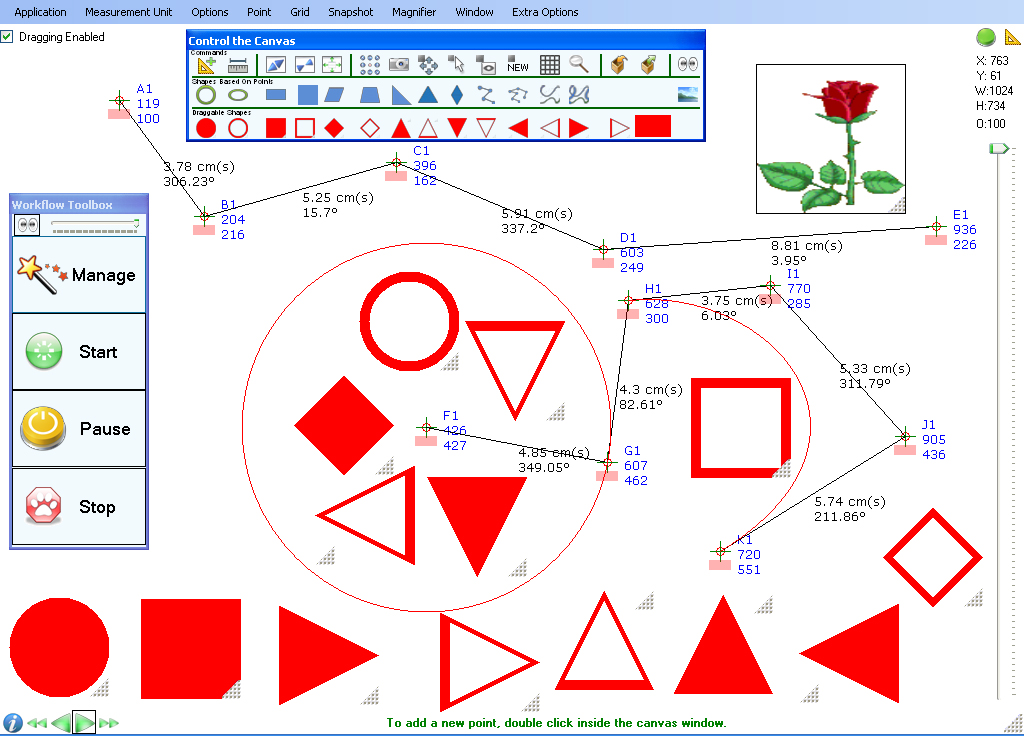
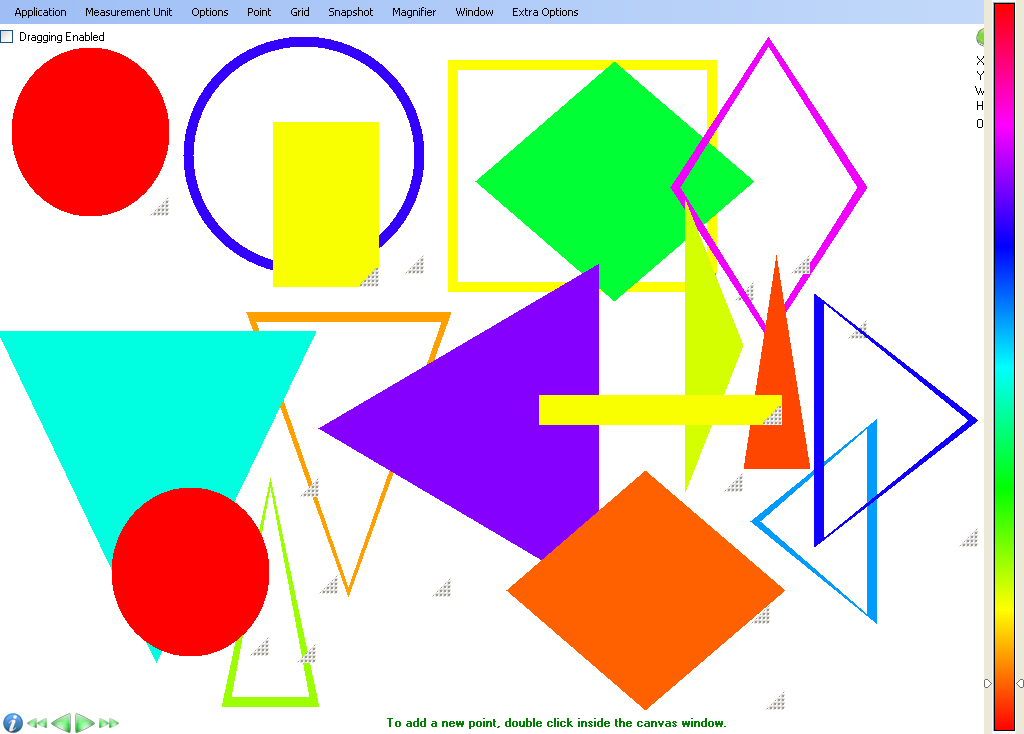
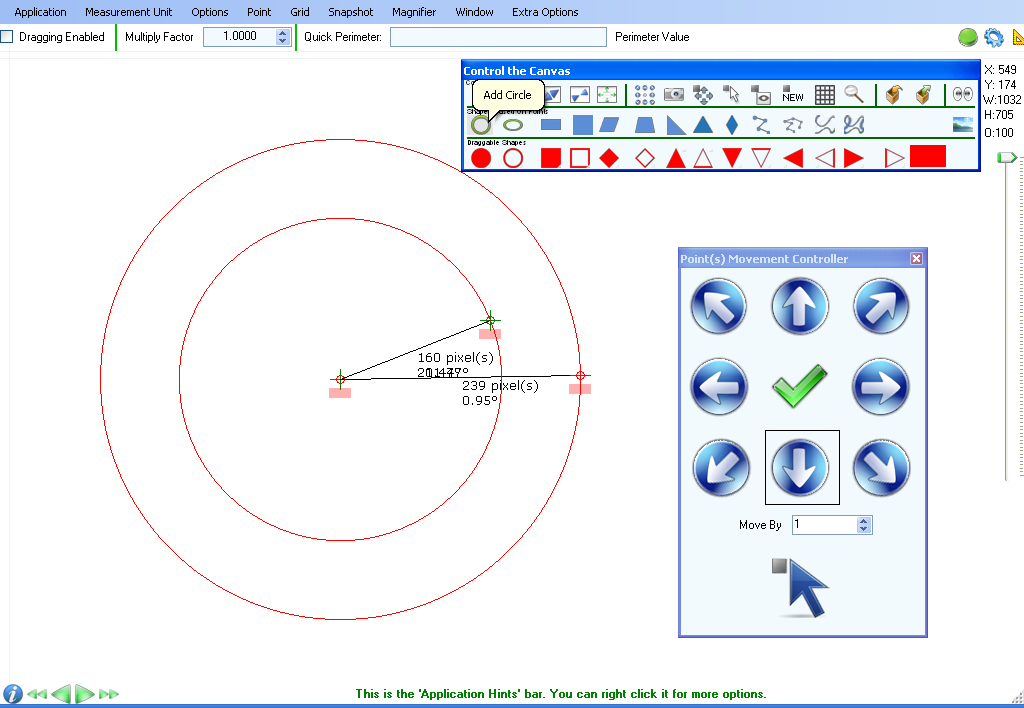
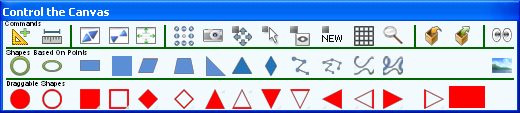
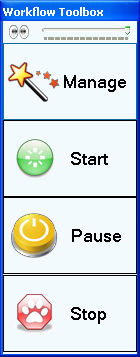
Here is what the application's main screen looks like: the canvas contains many points on screen, an image, shapes, the workflow toolbox and the 'Control the canvas' pop-up:
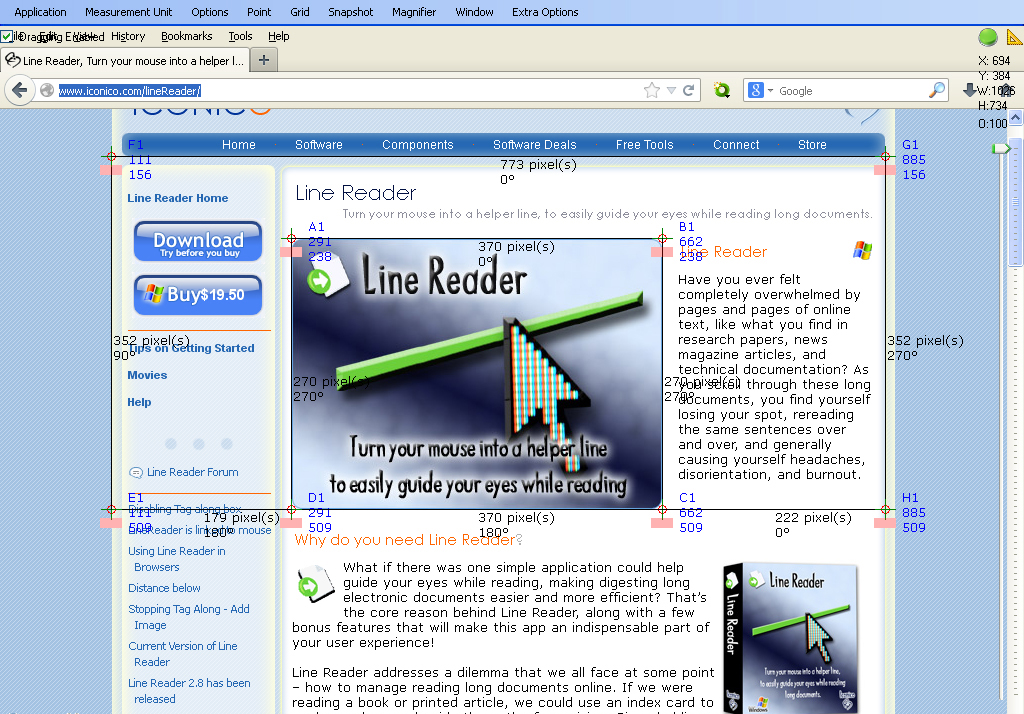
Why do you need Points On A Canvas? Points On A Canvas is designed to accommodate the needs of users who need the ability to take multiple measurements—lots and lots of them. Sure, at its heart, the program measures the distance between two points, but rare is the occasion where you’ll only have two points to measure! So, what happens if you have multiple distances to measure in a design, belonging to multiple components of that design?
The risk for error rises as your number of points increases! Enter Points On A Canvas, which lets you assign your points to groups, making it easy to track your measurements and eliminating mistakes caused by measuring between the wrong two points. And not just group identification, either – since Points On A Canvas also gives you the power to assign a name and description to every point that you place. It’s a designer’s dream come true!
Looking for even more functionality? You can add draggable picture containers to the canvas. These allow you to store images (even animated GIFs) which you can easily transfer to the background of the canvas so you may work on them there.
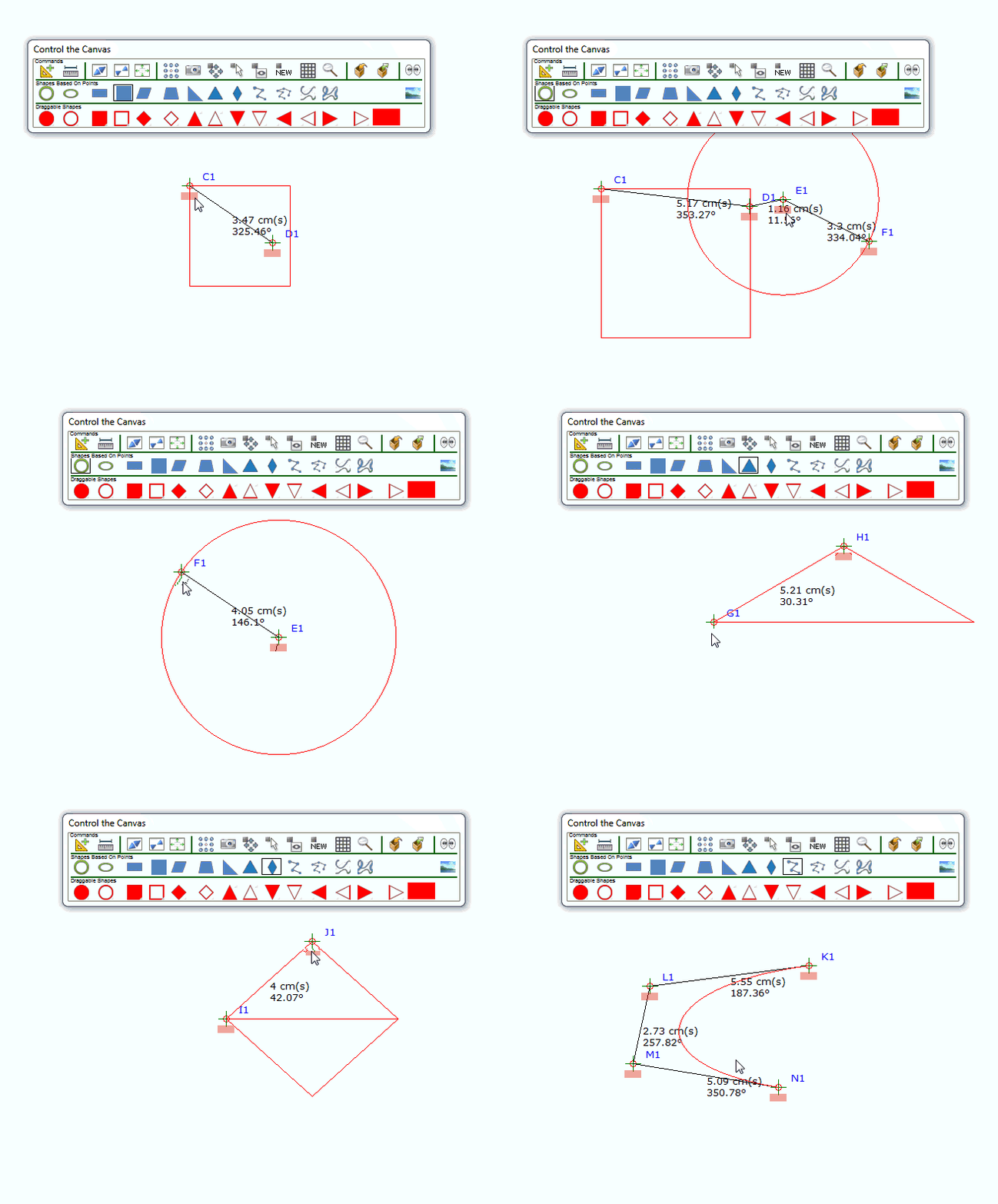
You can also add point-based shapes like circle, ellipse, square, rectangle, triangle, rhombus, bezier and curve which you can manipulate by moving their associated points on the canvas.
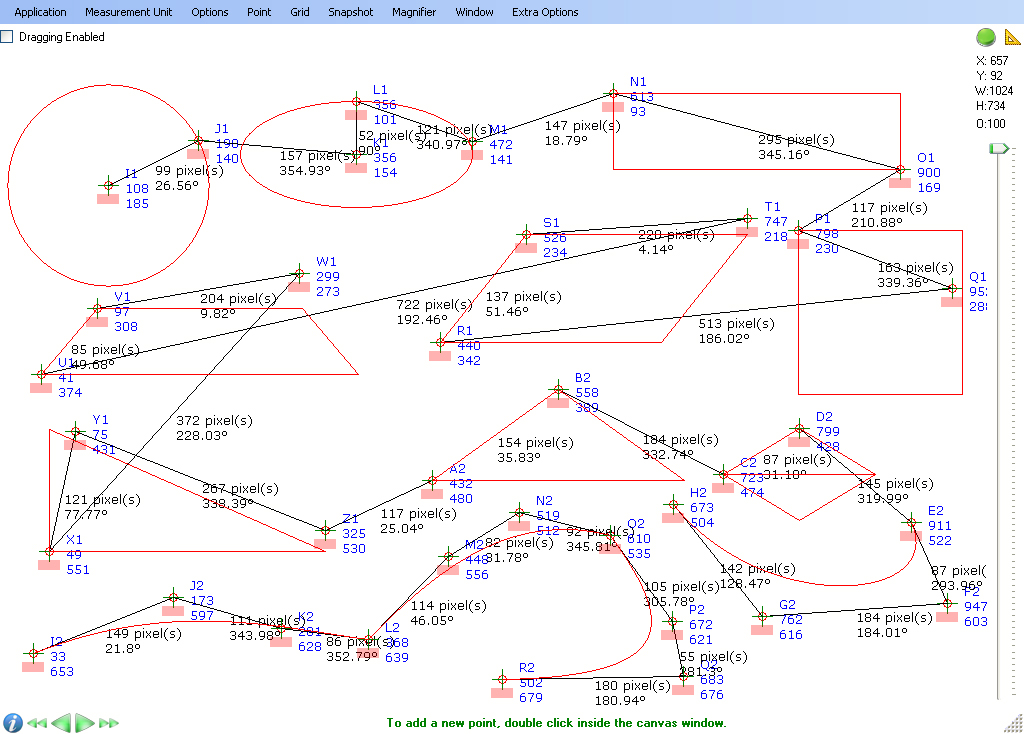
There are also draggable shapes which can serve as bookmarks or as picture containers. Then the entire canvas can be saved into a nicely structured XML file giving you easy access to all its saved properties.
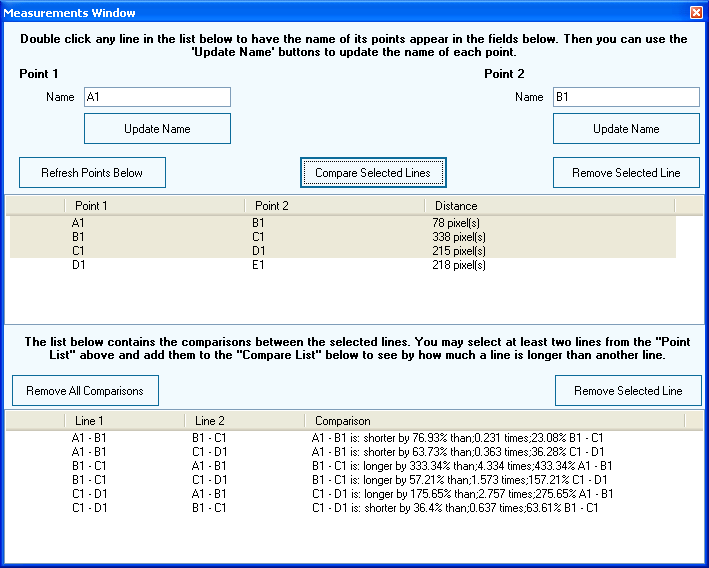
Add the ability to create your own workflows (steps where to click next) and units of measurement as well as comparing lines, and Points On A Canvas becomes an indispensable part of your design workflow.
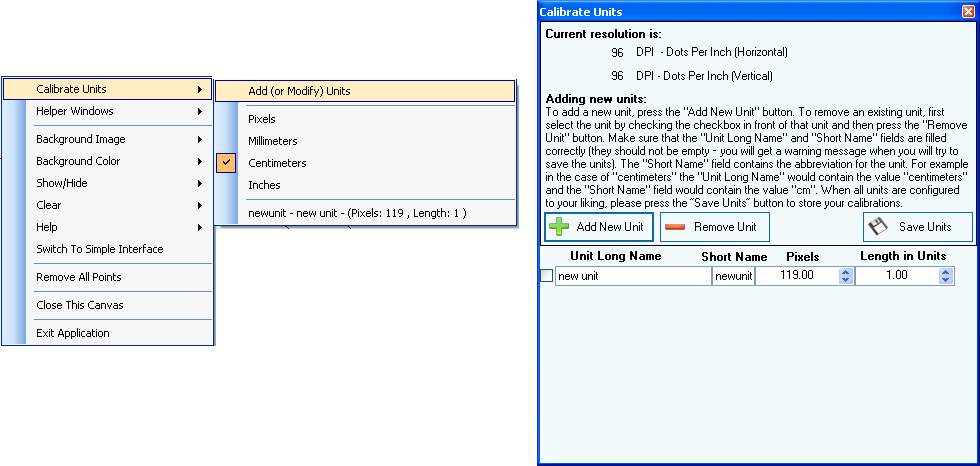
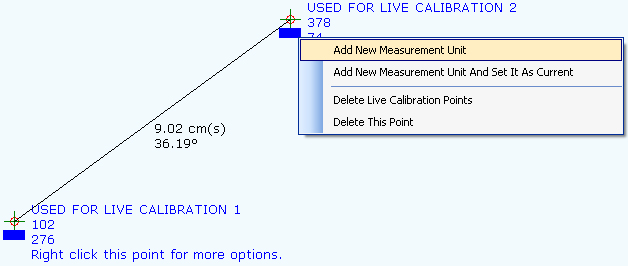
Using Points On A Canvas you can do the following:
Key Takeaway: Points On A Canvas lets you:
Here are several screenshots of Points On A Canvas features:
You can click on any of the images below to see a higher-resolution version of each image.
Points On A Canvas runs on Windows XP, Vista, 7, 8/8.1, 10, and 11, in both 32-bit and 64-bit versions.
Purchase Points On A Canvas:
Buy via BitsDuJour at 40% off:

Download this application - Version 1.0
Points On A Canvas Videos:
Go To Top