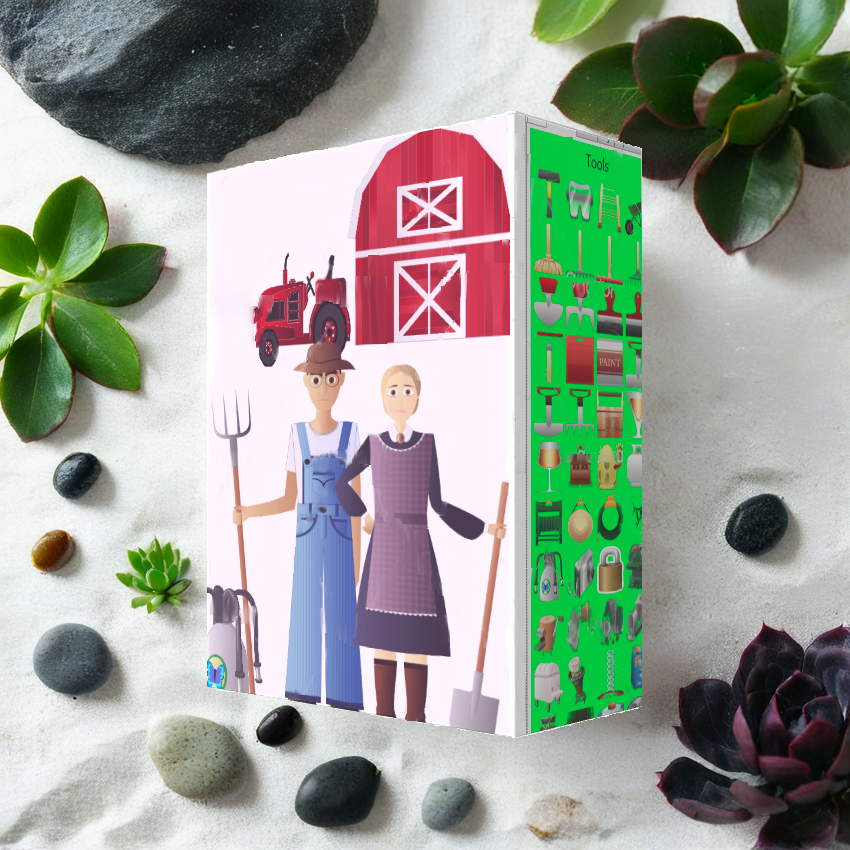
2D World Creator Scratchpad

Version 1.0

Method 1: Thousands/millions of results → search → evaluate → download → save → import → resize → continue

versus

Method 2: Browse images within this app → click image → create


If you were to compare these two methods of working with images inside any app you will find that the second method is significantly faster and more streamlined, convenient, letting you go from finding an image to creating with it in just a few clicks thus eliminating the tedious steps between finding an image on the Internet and actually using it in your creation, no searching, downloading, saving, importing, or resizing required.

This application is built based on Scratchpad For Images so they both have the same base features.

A: Just like Scratchpad For Images, 2D World Creator Scratchpad allows easy and time saving manipulation for your images as well as for the built-in images.
B:However what is different in 2D World Creator Scratchpad is that it has a lot of built-in public domain images from many categories.

And because it has a lot of built-in public-domain images from many categories, 2,693 images to be exact, it offers an easy way to create ideas, stories, scenes, concepts, plans, maps, diagrams, mockups, presentations, illustrations, landscapes, game designs, characters, 2D worlds and virtually anything you put your mind to, just click the image on the right side of the screen and it will be added to the canvas and there are many categories you can choose from.

If you're wondering: but I can find free images on the Internet myself, why would I need the app?
The app replies: You can certainly find images on the Internet. The question is how much time and effort you want to spend doing it.

Every time you need an image, the traditional workflow requires you to leave your creative application, search the Internet, browse through results, decide which image to use, download it, save it somewhere, return to your project, import it and often resize it before you can finally continue creating.

2D World Creator Scratchpad changes this workflow.

The images are already inside the application and organized into categories. When you see an image you want to use, you simply click it and it appears on your canvas.

That means you can spend less time managing images and more time actually creating.

The real advantage isn't simply having a collection of images. It's having those images available at the exact moment you need them, without interrupting your creative process.


Remember the two methods mentioned at the top:

Method 1 (Classical): Thousands/millions of results → search → evaluate → download → save → import → resize → continue

versus

Method 2 (New): Browse image categories within the app → click image → create


Method 2 offers a much faster and more effortless workflow, taking you directly from discovering an image to incorporating it into your creation in only a few clicks. It removes all the time-consuming steps in between—there’s no need to search, download, save, import, or resize the image before you can use it.

This is very useful when you are in a creative state or you simply want to focus on your idea and don't want to spend a lot of time browsing the Internet in order to find the images you want to use.

By eliminating the need to constantly switch between the creative process and image searching, the app helps you maintain your creative flow and keeps your attention focused on developing the idea itself. Instead of spending time searching, comparing, and deciding which images to use, you can experiment with different visual elements immediately and see how they contribute to your idea. In this way, finding images becomes a quick part of the creative process rather than an activity that interrupts it.

Using this app you can preserve your creative flow, attention, and momentum and jump directly on putting your idea on the canvas using all kinds of images.

Ultimately, as ChatGPT puts it: the app removes the interruption between having an idea and expressing it visually.


Here are the categories of those 2,693 images which are present in the app:
animals, artifacts, balls and bells, bottles, boxes and bags, buildings, bush, buttons, cakes and candles, callouts, characters, chemical, clothes, construction materials, cube creatures, designs, drinks, eggs, eyes, flowers, food, frames, fruits, ghosts, glasses, grass, hats, heads, holiday, house related, jars, jewels, ladders, landscape, landscape objects, lianas, mouth, mushrooms, nose, other, paper, party, plants, pumpkins, shoes, shops, signs, smilies, snow landscape, spices, stars, tools, toys, trees, trophies, vegetables, vehicles, weather, wood.


While 2D World Creator Scratchpad is especially well suited to creating illustrations, landscapes, game ideas, game mockups, game designs, game-character interactions, and ultimately 2D worlds, it isn't limited to these kinds of projects. The built-in images and the app's name naturally reflect the creative direction the app is most geared toward, but because you can also import and work with your own external images, you can use the app to bring all kinds of ideas to life. Whether your project fits the app's natural focus or takes it in a completely different direction, the creative possibilities are yours to explore.

Combine this with the fact that the app has image filtering capabilities which transform your images (for example same image different colors, Sepia, Oil Painting, etc) and you may have all you need in order to bring your ideas on to the canvas without leaving the app.

The application features: image rotation, image resizing, image filtering, image duplication, dragging images across the canvas, quick canvas scrolling, creating animated Gif files, record movement resizing and rotation of images and then let the images move automatically, split an image into rectangles, rotating images the full 360 degrees by specifying the steps in degrees, image filters, adding text to images, adding sounds to images, generating an image based on all images on the canvas as well as a section to store your preferred images which can be later added to the canvas by a simple click of the mouse.

The app also offers the ability to make each image move and as a result besides building complex image scenaries as explained above, you can also build entire scenes made of moving parts (moving images) .


Inside the application, you will find images (released in the Public Domain) from the following places:
1. https://nicubunu.ro/ | https://openclipart.org/artist/nicubunu
2. Glitch images (on Github.com) | https://openclipart.org/artist/glitch
3. https://www.deviantart.com/viscious-speed | https://openclipart.org/artist/Viscious-Speed
The built-in images are easily accessible and can be added to the main canvas by (literally) a simple mouse click.

The current work in progress can be saved as an XML file to be loaded anytime later and the final image can be saved as a PNG to preserve transparency. You can also save the image under the following formats: WMF, TIFF, MEMORYBMP, EXIF, EMF, BMP and JPG.

You can easily transform 2D World Creator Scratchpad into Scratchpad For Images by unchecking the three "Load Default Images" checkboxes from the "Options" tab.

    2D World Creator Scratchpad is perfect for:
  • 🎨 Designers & Creatives: Graphic designers, UX/UI designers, illustrators, artists, architects, photographers, fashion designers, art directors, etc.
  • 📣 Marketing & Content: Marketers, social-media creators, bloggers, copywriters, YouTubers, podcasters, newsletter creators, advertisers, etc.
  • 🎓 Education: Teachers, students, tutors, trainers, course creators, homeschoolers, researchers, etc.
  • 💼 Business & Professional: Entrepreneurs, consultants, sales professionals, HR, project managers, product managers, small businesses, etc.
  • 🌐 Web & Digital: Web designers, developers, app designers, ecommerce sellers, digital publishers, etc.
  • 🎤 Presentations & Communication: Presentation creators, public speakers, workshop facilitators, trainers, consultants, conference speakers, etc.
  • ✍️ Writers & Publishers: Authors, journalists, bloggers, publishers, children's-book creators, copywriters, etc.
  • 🎮 Games & Entertainment: Game designers, storyboard artists, tabletop-game creators, concept artists, etc.
  • 🏠 Visual Planning & Lifestyle: Interior designers, DIY creators, scrapbookers, bullet-journal users, hobbyists, event planners, etc.
  • 🏢 Organizations & Communities: Nonprofits, clubs, associations, libraries, museums, community managers, student organizations, etc.

  • For a more detailed list of potential users along with how each category can use the app, please click here!

    Key Takeaway for 2D World Creator Scratchpad:
  • Instantly usable assets: this isn't just about the fact that the images are easily available; the images are actually one click away from being part of the project.
  • Consistency: you can create projects with a reasonably consistent visual style rather than combining random images from five different websites.
  • Reduces friction: you don't have to leave the creative workspace to search for visual material elsewhere.
  • It preserves creative flow: searching the web can shift your attention from creating to evaluating and selecting images.
  • It keeps the idea at the center: images become a means of expressing the idea rather than the activity itself.
  • It encourages experimentation: because images can be added immediately, you can quickly try different visual directions without feeling that each image requires a separate search.
  • It maintains momentum: when an idea is fresh, even a short interruption can break the train of thought. Immediate access to images allows you to keep developing the idea while it is still taking shape.
  • It minimizes decision fatigue: instead of opening multiple websites, comparing results, and deciding which image to download, you can simply choose from the available images and continue creating.
  • Useful for people who aren't good at finding visual assets: many users don't know where to find good public-domain images, what search terms to use, or which images are actually suitable.

    Here is what ChatGPT says you can do with the 2D World Creator Scratchpad application:
  • Create 2D scenes by combining multiple images on a canvas
  • Create landscapes and natural environments
  • Create characters and character scenes
  • Create game concepts and game scenes
  • Create game mockups and visual prototypes.
  • Create storyboards and visual stories.
  • Create illustrations and creative compositions
  • Create diagrams and visual concepts
  • Create maps and simple visual layouts
  • Create presentations and presentation graphics
  • Create visual concepts and idea boards
  • Create mockups and prototypes
  • Create mood boards and visual references
  • Create scenes with multiple objects and characters
  • Create scenes using thousands of built-in public-domain images
  • Browse images by category and add them to the canvas with a single click
  • Combine built-in images with your own images
  • Create complex compositions from multiple individual images
  • Move, resize, rotate, duplicate and delete images on the canvas
  • Change image opacity and apply image filters
  • Create different visual variations of the same image using filters
  • Add text and sounds to images
  • Create animated GIFs
  • Record the movement, resizing and rotation of images and play those movements automatically
  • Create scenes containing moving objects and characters
  • Create reusable collections of your preferred images
  • Save your work and continue working on it later
  • Export your creations as PNG, JPG, BMP, TIFF, WMF, EMF and other image formats
  • Preserve transparency when saving your final creation as a PNG
  • Turn ideas into visual compositions without constantly leaving the application to search for images online
  • Experiment with different visual elements quickly while keeping your creative process moving
  • Use the application as a creative scratchpad for exploring ideas, concepts, scenes and visual stories
  • Create virtually any 2D composition by combining the available images in whatever way you choose

Stop leaving your canvas to find images!

Thousands of ready-to-use images, available directly from your canvas.

For just $14.95, you get instant access to thousands of ready-to-use images. Think about how much your time is worth searching, downloading, and resizing even a fraction of them. Let the app do the work so you can stay focused on creating.


2D World Creator Scratchpad runs on Windows XP, Vista, 7, 8/8.1, 10, 11 in both 32-bit and 64-bit versions

  • You may download the feature limited version of the application, and evaluate the software for as long as you need
  • .Net Framework required
  • The software is licensed per computer
  • The registration code(s) will be sent by e-mail within 24 hours after your purchase is confirmed
  • A license is only $29.90 regular price
  • ✓ 2,693 built-in public-domain images
  • ✓ Multiple image categories
  • ✓ Image manipulation and transformation tools
  • ✓ Image filters
  • ✓ Animated GIF creation
  • ✓ Automatic image movement
  • ✓ Text and sound support
  • ✓ Your own images can be imported
  • ✓ Save and reopen your projects
  • ✓ Multiple export formats
  • ✓ Free lifetime upgrades
  • ✓ Free technical support via email


Purchase 2D World Creator Scratchpad:

Buy via BitsDuJour at 50% off: $14.95

Buy via PayPal at 50% off: $14.95


Download - Version 1.0

        Download app from BitsDuJour: press Download Trial in the BitsDuJour product page!

        Contact us for the 32 bit version download URL


Read the Help files         Get PAD file


Check out the screenshots below!

Main Screen - Once you start the application you are presented with the canvas on the left and the images on the right. The images are grouped in three main categories: "Life", "Nature" and "Extra" and further in subcategories, for example "Animals", "Characters", "Heads", "Cube Creatures", "Ghosts", "Pumpkins", "Smilies", "Stars", "Weather", "Eyes", "Mouth", "Nose", "Trees", "Plants", "Lianas" etc. To scroll up and down to see all images, you can hover the mouse near the top (for scrolling down) and bottom (for scrolling down) of the panel/section containing the built-in images. For scrolling, you can also click the panel containing the images and then either use the UP and DOWN arrow keys or the Page Up and Page Down keys. To add an image to the canvas, simply click it. You can right click the canvas or an individual image to see more options. To make the canvas bigger, right click it, and select "Show/Hide Right Side Controls"
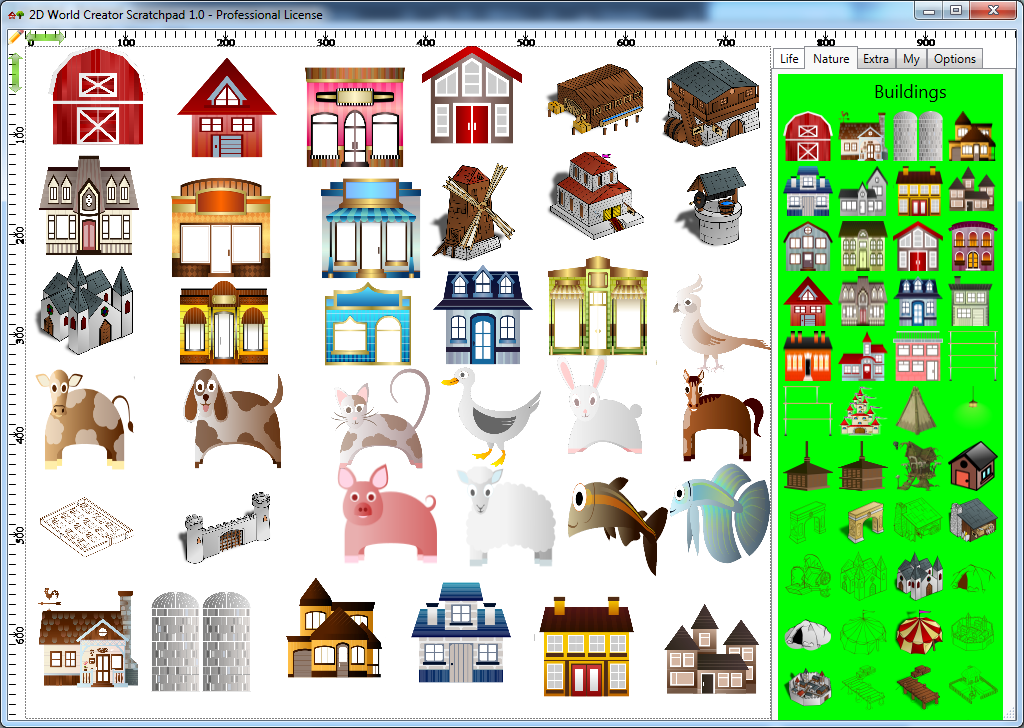
Main window of the application

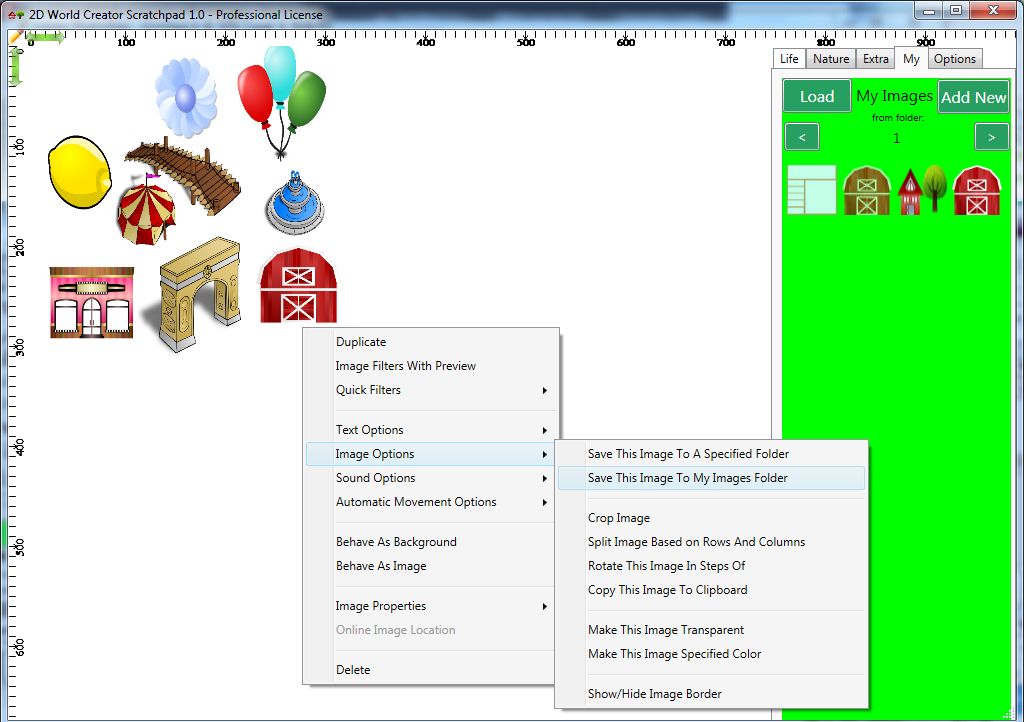
My Images Screen - After having built a part of your final image or the final image itself, you can right click the Canvas and select "New Image" -> "From Entire Canvas" (make sure the background of the canvas is Transparent for this to work correctly). This will add to the canvas, an image of the current canvas content. Then you can right click this newly added image and add it to the "My Images" section in the folder which is currently active. You can have as many folders as you like in the "My Images" section (just press the "Add New" button). You can scroll the folders in the "My Images" section using the top left and right buttons in that section. For easier scrolling among "My Images" folders it is advisable to keep a few hundred images (instead of thousands of images) inside each folder.
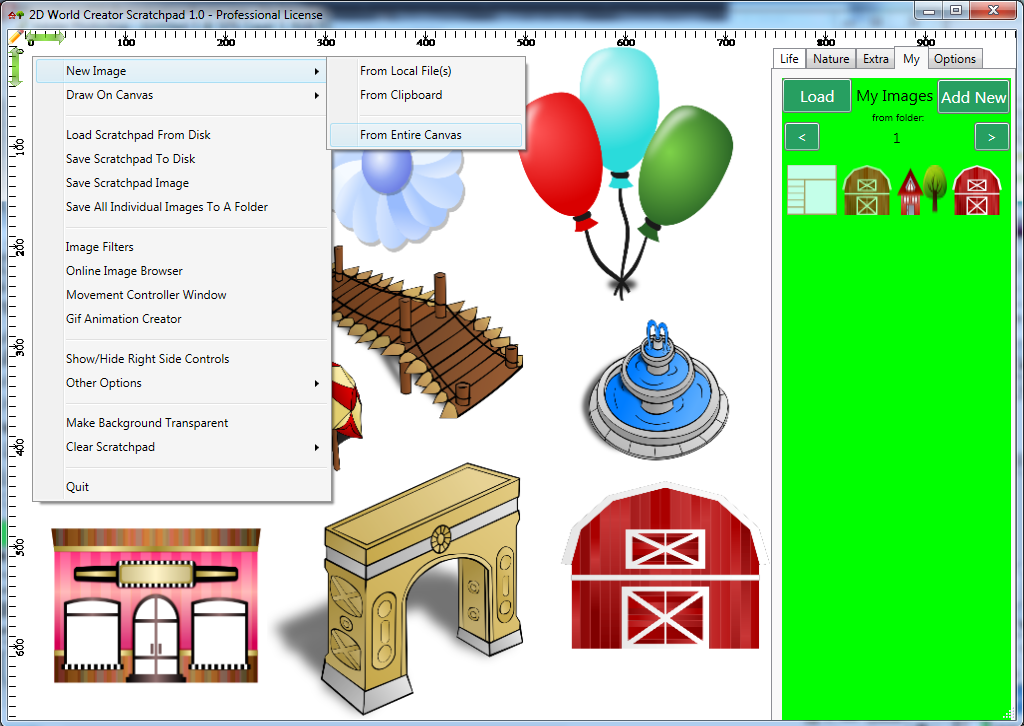
My Images Screen - Create new images from entire canvas

My Images Screen - Add image to the My Images section

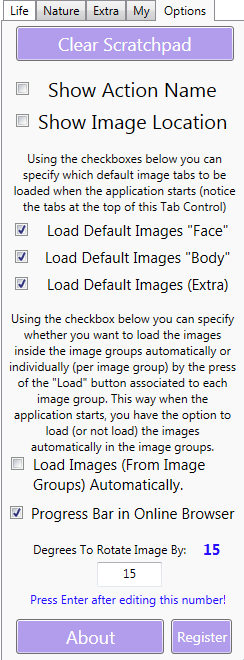
Options Screen - In this screen you have options like "Load Scratchpad From Disk", "Save Scratchpad To Disk", "Save Image To Disk", "Refresh Preview", "Set Scratchpad Color", "Set Transparent Background", "Clear Scratchpad", "Help Files", set the scratchpad dimensions and a few more, see images below.
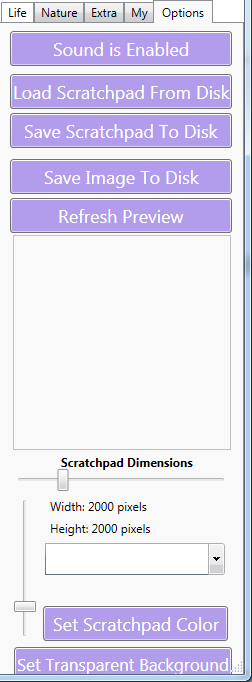
Options Screen - View 1 Options Screen - View 2

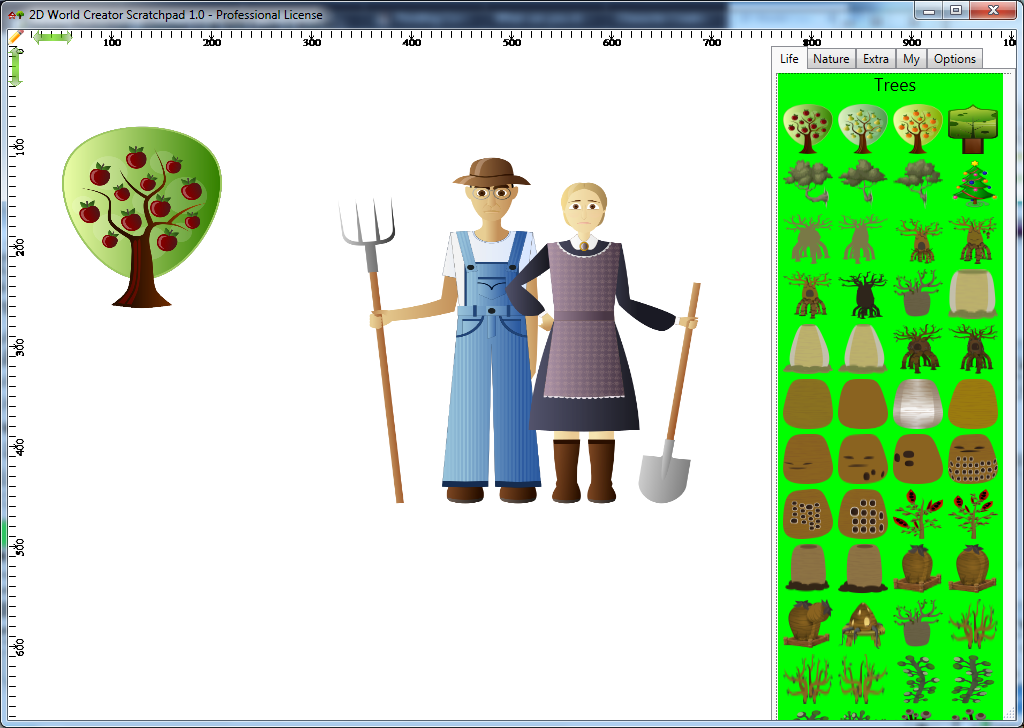
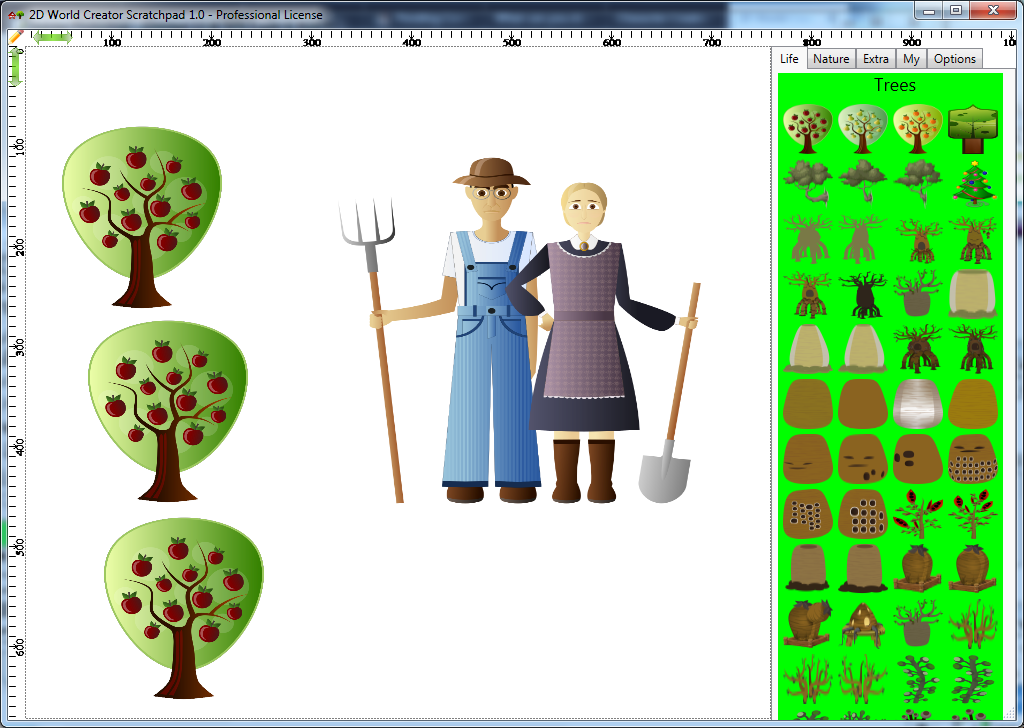
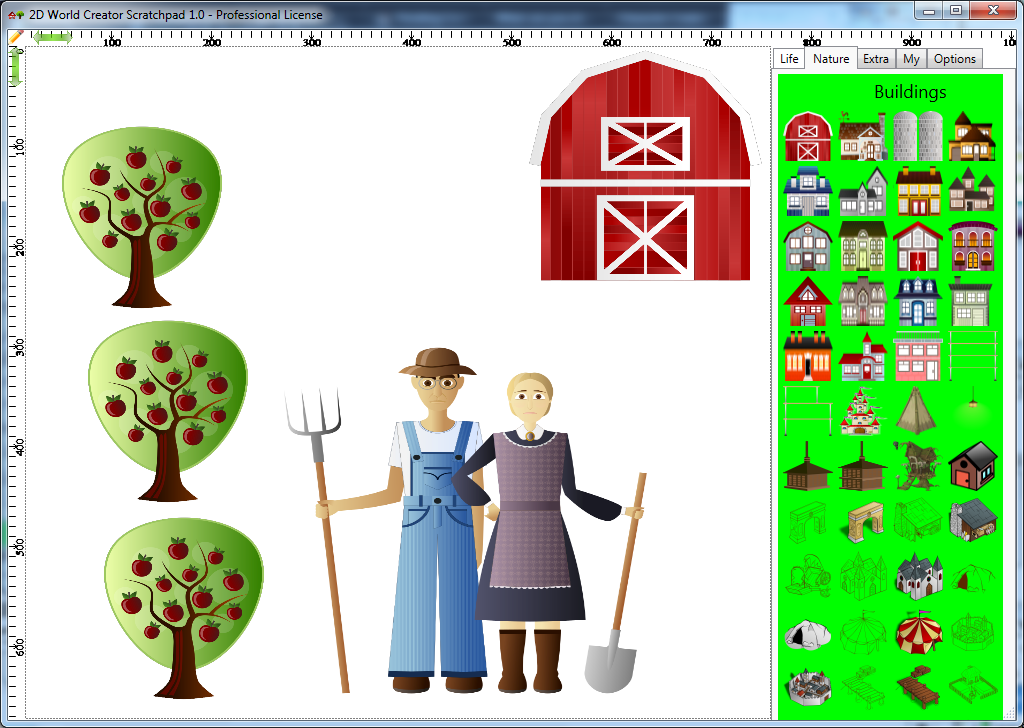
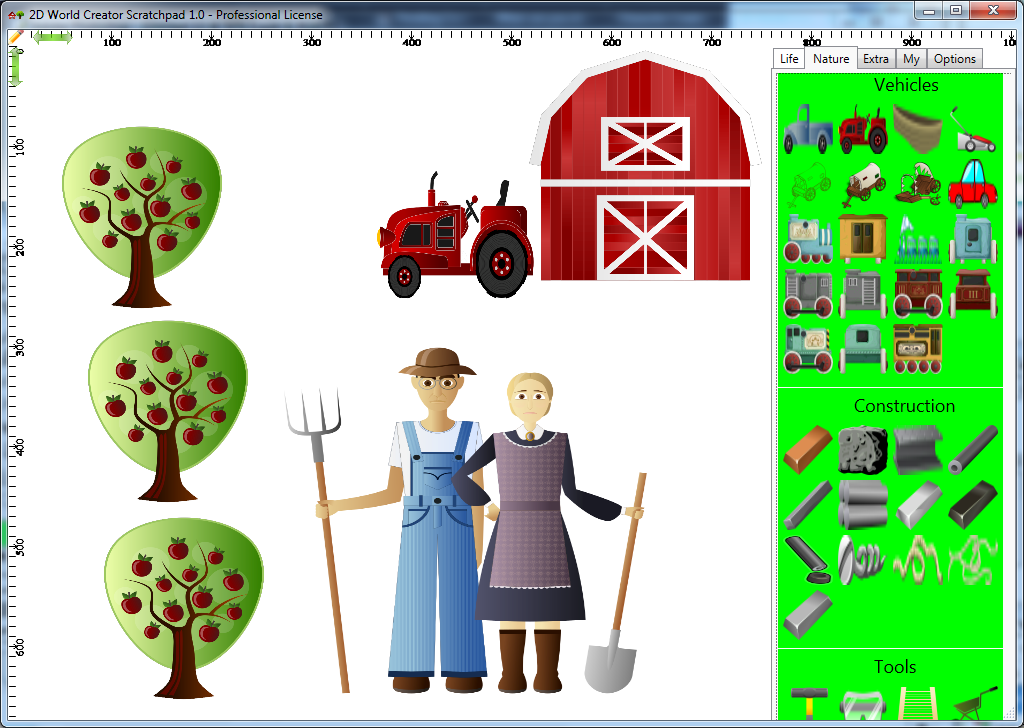
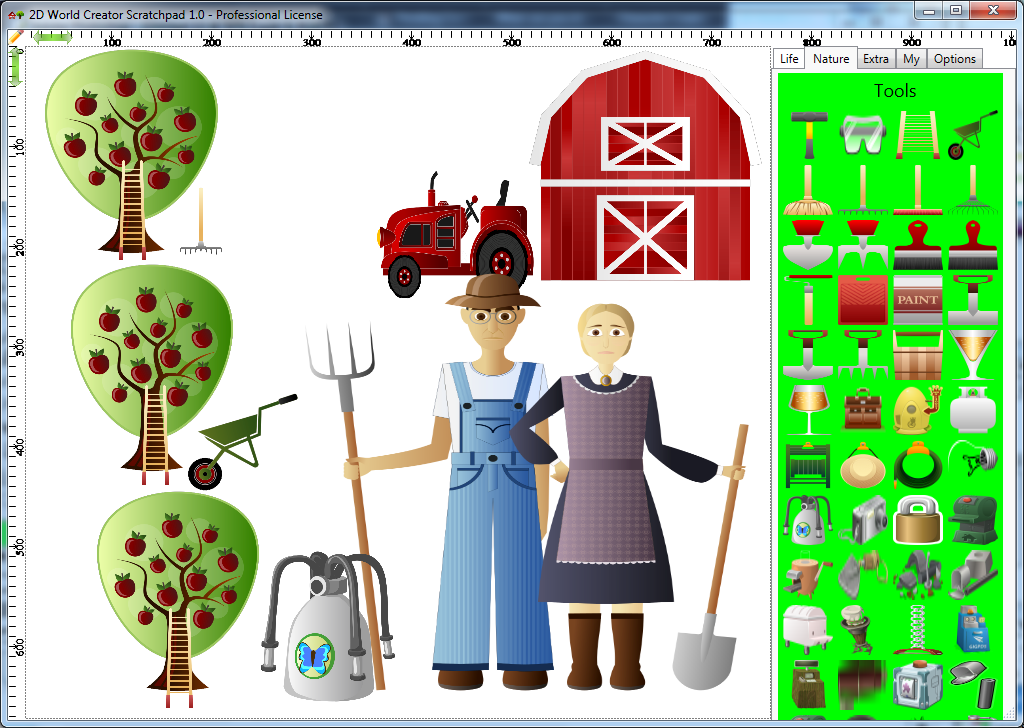
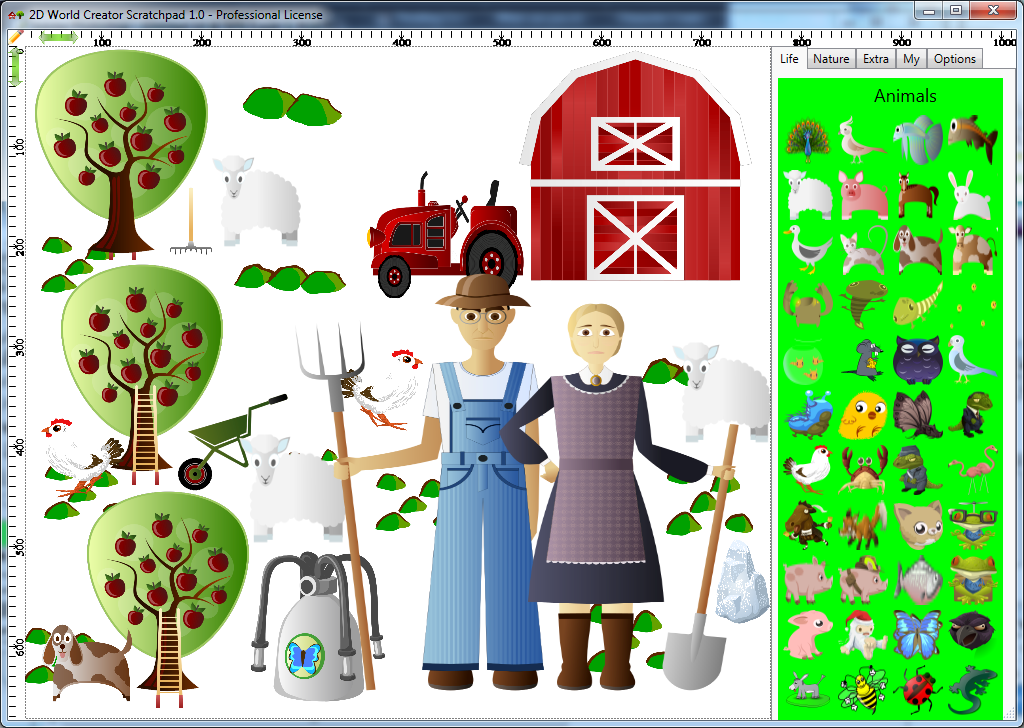
Here are a few steps to create an image scene using the built-in images. Simply click on the image on the right side menu to add that image to the canvas and then drag that image in the position you want.
Step 1:
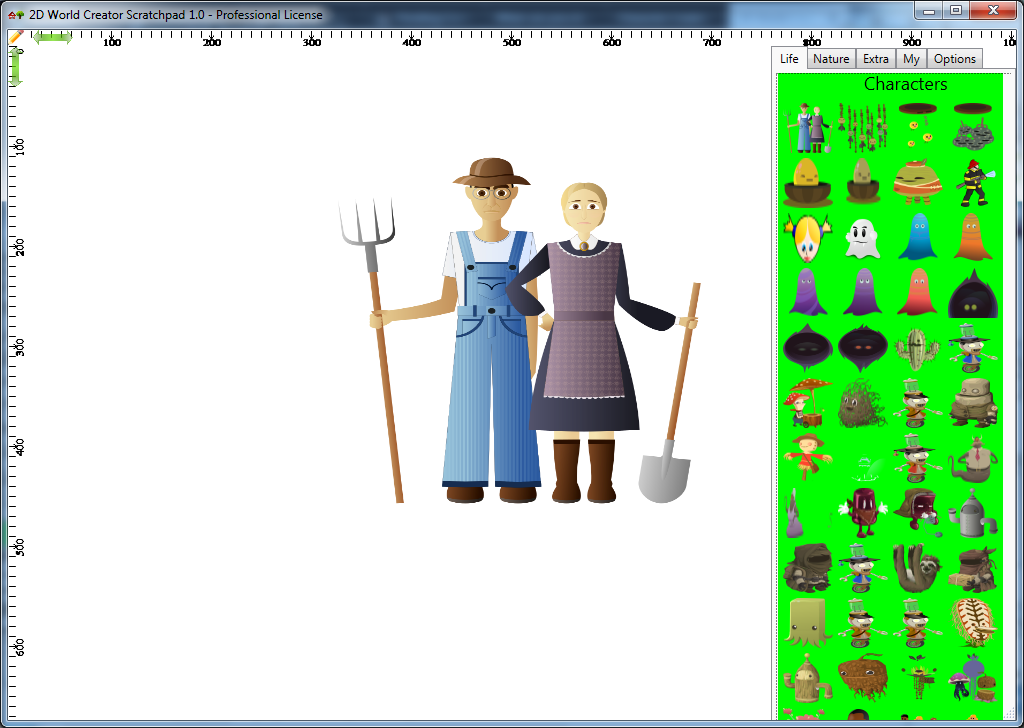
Character Creator Scratchpad - Step 1

Step 2:

Character Creator Scratchpad - Step 2

Step 3:

Character Creator Scratchpad - Step 3

Step 4:

Character Creator Scratchpad - Step 4

Step 5:

Character Creator Scratchpad - Step 5

Step 6:

Character Creator Scratchpad - Step 6

Step 7:

Character Creator Scratchpad - Step 7

Next Step (Step 8): Imagine what you can do using the built-in images, your own images or images from the Internet. For the biggest and commercially free collection of images go to: OpenClipArt.Org

    Here are the user groups who may find this app particularly useful:
  • Graphic designers → Ready-to-use images for designs, layouts, mockups and creative projects.
  • Presentation creators → Make slides more engaging with images that are ready to drop into presentations.
  • Marketers → Quickly add visuals to campaigns, advertisements, promotional materials and marketing concepts.
  • Teachers → Add engaging visuals to lessons, worksheets, classroom activities and educational projects.
  • Students → Find images quickly for school projects, presentations, reports and assignments.
  • Social-media creators → Create more visually appealing posts, stories, thumbnails and social content without leaving the workspace.
  • Bloggers → Quickly find images for blog posts, articles, headers and visual storytelling.
  • UX/UI designers → Add realistic imagery to wireframes, prototypes, mockups and interface concepts.
  • Mind-mapping users → Turn ideas and concepts into more memorable visual mind maps.
  • Project planners → Add visual references to plans, concepts, workflows and project boards.
  • Content creators → Find visual assets quickly while creating videos, articles, posts and other content.
  • Copywriters → Quickly add imagery to concepts, campaigns, presentations and content drafts.
  • Writers & authors → Visualize characters, settings, concepts and ideas while developing creative work.
  • YouTubers → Find imagery for video concepts, thumbnails, storyboards and supporting graphics.
  • Video creators → Add visual references and supporting imagery to storyboards and video projects.
  • Podcasters → Create episode graphics, promotional material and visual concepts for podcast content.
  • Newsletter creators → Add attractive visuals to newsletters without interrupting the writing workflow.
  • Website designers → Quickly populate websites, landing pages and prototypes with appropriate imagery.
  • Web developers → Use ready-to-go images when building prototypes, demos and website concepts.
  • App designers → Add imagery to app screens, prototypes, mockups and product concepts.
  • Product managers → Make product concepts, roadmaps and presentations easier to communicate visually.
  • Entrepreneurs → Quickly create visuals for business ideas, pitch decks, websites and promotional material.
  • Startup founders → Add visuals to pitch decks, product concepts, landing pages and investor presentations.
  • Business consultants → Make strategy presentations, workshops and reports more visual and easier to follow.
  • Sales professionals → Add relevant visuals to sales presentations, proposals and pitch materials.
  • Real-estate professionals → Create presentations, property concepts, marketing materials and social content.
  • Recruiters / HR professionals → Add visuals to job campaigns, presentations, internal communications and employer-branding materials.
  • Small-business owners → Create professional-looking promotional material without needing a dedicated designer.
  • Nonprofit organizations → Create presentations, campaigns, educational material and awareness content with minimal design resources.
  • Event organizers → Create invitations, event graphics, presentations, promotional material and signage.
  • Workshop facilitators → Make workshops and brainstorming sessions more visual and interactive.
  • Coaches & consultants → Add imagery to exercises, presentations, worksheets and educational material.
  • Trainers → Create visually engaging training materials, presentations and instructional content.
  • Online-course creators → Add visual examples and supporting imagery to lessons, slides and course materials.
  • Tutors → Quickly find visuals that help explain concepts to students.
  • Homeschooling parents → Create engaging educational activities, projects and learning materials.
  • Researchers → Add visual references to presentations, concept maps, reports and research communication.
  • University students → Create better presentations, posters, research projects and visual assignments.
  • Teachers of young children → Create colorful activities, worksheets, stories and classroom materials.
  • Authors of children's books → Find visual inspiration and imagery for stories, characters and educational material.
  • Illustrators & artists → Use images as references, inspiration, mood-board material and creative starting points.
  • Concept artists → Quickly collect visual references for characters, environments and creative concepts.
  • Photographers → Use imagery for mood boards, compositions, client presentations and creative references.
  • Interior designers → Build mood boards, concept presentations and visual references for clients.
  • Architects → Add visual references to concepts, presentations, mood boards and project proposals.
  • Fashion designers → Collect references for mood boards, concepts, collections and presentations.
  • Advertising creatives → Quickly explore visual directions for campaigns, concepts and advertisements.
  • Brand designers → Gather imagery for mood boards, brand concepts and visual identity exploration.
  • Art directors → Rapidly assemble visual references and communicate creative direction.
  • Storyboard artists → Quickly find reference imagery when planning scenes and visual narratives.
  • Game designers → Gather visual references for characters, environments, objects and game concepts.
  • D&D / tabletop game creators → Add visual references for characters, creatures, locations and campaign materials.
  • Community managers → Quickly create visual content for online communities and announcements.
  • Forum/community creators → Add imagery to posts, guides, announcements and community resources.
  • Ecommerce sellers → Add supporting imagery to product concepts, promotional graphics and marketing material.
  • Marketplace sellers → Create promotional visuals and supporting graphics for product listings.
  • Print designers → Find imagery for flyers, posters, brochures, cards and other printed materials.
  • DIY / craft creators → Collect visual inspiration and create project instructions or promotional material.
  • Hobbyists → Quickly add images to personal creative projects, collections and visual boards.
  • Bullet-journal users → Add visual elements to planning, journaling and creative layouts.
  • Scrapbookers → Find imagery for digital scrapbooks, memory books and creative compositions.
  • Pinterest creators → Quickly build visually attractive pins and idea boards.
  • Digital artists → Use imagery as inspiration, references and components in creative compositions.
  • Presentation trainers / speakers → Make talks, workshops and conference presentations more visually compelling.
  • Public speakers → Add visual storytelling elements to speeches, talks and keynote presentations.
  • Journalists → Quickly find supporting imagery for visual stories, presentations and editorial concepts.
  • Publishers → Find supporting imagery for articles, books, educational material and publications.
  • Museum / cultural organizations → Create educational material, exhibitions, presentations and promotional content.
  • Libraries → Create promotional, educational and community materials with ready-to-use imagery.
  • Churches / religious organizations → Create presentation slides, announcements, educational material and social content.
  • Clubs & associations → Quickly create posters, announcements, presentations and promotional graphics.
  • Student organizations → Create event promotions, presentations, social posts and campaign material.
  • Freelancers → Speed up client work by having a visual library immediately available.
  • Virtual assistants → Quickly create presentations, social posts, documents and other materials for clients.
  • Administrative professionals → Improve presentations, reports, newsletters and internal communications.
  • Office workers → Add visual elements to reports, presentations, proposals and internal documents.

Version History:

    Version 1.0 (October 2026)
  • 2D World Creator Scratchpad is released.