
Silhouette, Outline and Line Art Image Creator - Online Help
Silhouette, Outline and Line Art Image Creator is built on Image Creator Scratchpad and
allows you to quickly and easily create silhouette, outline and line art images. For a lot more functionality, you may try Image Creator Scratchpad.
Silhouette, Outline and Line Art Image Creator inherits the easy and rapid manipulation of images from Image Creator Scratchpad. It does this in a variety of ways.
The canvas size can be adjusted easily giving you as much space as you need for your image scenes.
Because it allows fast and easy manipulation of images, it can also be used as a tool to quickly create initial designs for projects of any kind including software applications and websites.
You can use Silhouette, Outline and Line Art Image Creator to:
Quickly and easily create silhouettes, outlines and line art images.
Quickly create image scenes using images.
Create panoramic images with incredible ease.
Can be used as a Comic Creator.
Rotate images with a press of a key and a mouse click. To rotate the last clicked image in the application, keep pressing SHIFT and click the left mouse button. The Left SHIFT key (along with the mouse click) is for rotating the image counter clockwise and the Right SHIFT key (along with the mouse click) is for rotating the image clockwise.
Resize an image with a press of a key and a mouse click. To resize the last clicked image in the application, keep pressing any of the CTRL keys, then click the left mouse button and drag it around to resize.
Duplicate an image. To do this right click the image and select "Duplicate".
Drag images across the canvas.
Make an image behave as a background image so that you can add more images on top of it. You can also make a background image behave as a normal image if you want to.
Filter images. To do this, right click an image and select "Quick Filters".
Quickly generate an image made of several images. To do this, add your images to the canvas, then right click the canvas and select "Make Background Transparent". Then go to the Options tab and press the "Refresh Preview" button to see a preview of how your image will look like if you save it. You can continue to work on your image scene or you can save the image scene using the "Save Image To Disk" button in the Options tab or right click the canvas and select "Save Scratchpad Image". You can even add your image scene back to the canvas and to do this you need to right click the canvas and select "New Image" and then the "From Entire Canvas" menu option.
Rotate images by specifying the rotation steps in degrees. You can add the resulting images to the main canvas or you can save them to a folder.
Quickly change the scale of the selected image. To do this press CTRL + [ to decrease the scale and CTRL + ] to increase the scale. To reset the scale to 1 press CTRL + \
I. General Usage:
- The program was designed to allow rapid manipulation of images.
- Quickly and easily create silhouettes, outlines and line art images.
- Create image scenes quickly and easily.
- Create panoramic images.
- As a tool to quickly create initial designs for projects of any kind including software applications and websites.
- Rotate, resize, duplicate, drag images.
- Make an image behave as a background.
- Filter images using a few image filters (see Image Creator Scratchpad for more filters).
- Quickly scroll the canvas to work on different parts of it.
- Change the scale of the selected image.
II. Silhouette, Outline and Line Art Image Creator Explained
- Rotate, resize, duplicate, change opacity, crop and drag images
- Make an image behave as a background image
- Creating Silhouettes, Outlines and Line Art Images
- Quickly scroll the canvas to work on different parts of it
- Shortcuts for different actions
- Useful functionalities for handling images
III. Standard and Professional (Features Information for Image Creator Scratchpad)
You are getting the Professional version of "Silhouette, Outline and Line Art Image Creator" however if you want more functionality related to
manipulating images, please consider our "Image Creator Scratchpad" which contains all the features "Silhouette, Outline and Line Art Image Creator" has plus many more.
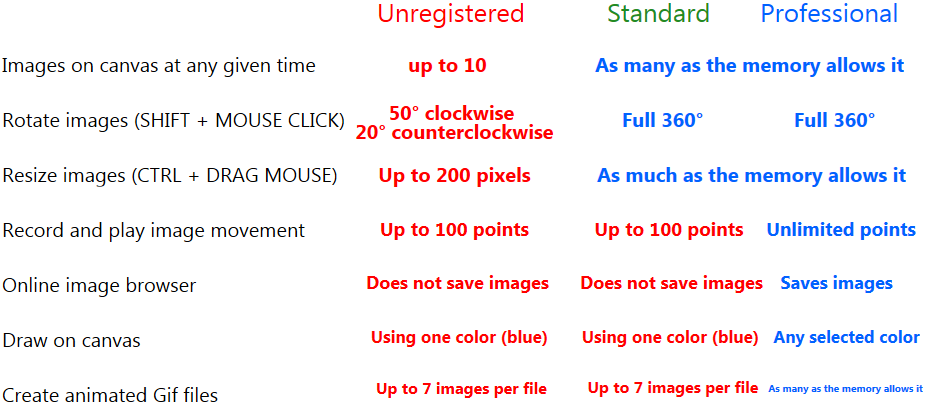
The image below shows the important features of "Image Creator Scratchpad" and the license they are active with:
IV. Registered versus Unregistered (Features Information)
In the unregistered version you can:
- use up to 10 images.
- rotate an image within certain angles
- resize an image up to 200 pixels both in width and in height
- when saving images the product adds "Please register!" on top of the saved images.